

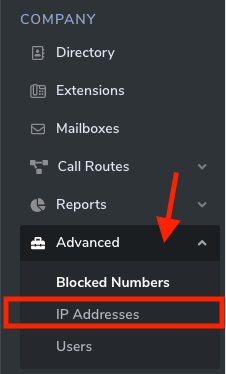
- From the UniVoxx Portal side menu click Advanced> IP Addresses
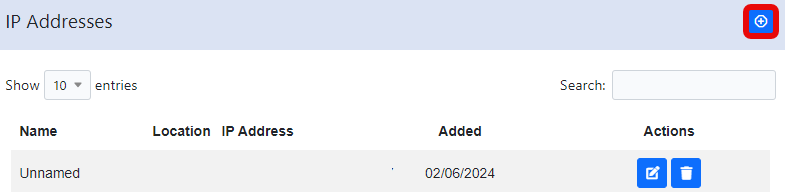
- Click on the "+" icon from the top right corner to whitelist an IP address
- In the pop-up, fill in the required information, then click Add
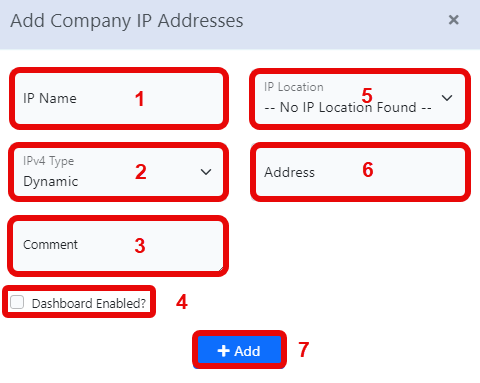
1 - Name of IP (Internet 1, Internet 2, etc)
2 - Is it a static or DHCP assigned IP?
3 - Description of IP
4 - Visible on dashboard
5 - Physical location of IP (Set in locations section of the portal)
6 - Address of location
7 - Save configuration
Still stuck?
This is the general version of this guide. Sign in to the customer portal for guides written for your system, deeper troubleshooting and your support history, or reach our team directly.