

Forwarding
The Number Forwarding page is used to create number entries that we don’t own. These can then be forwarded from numbers that we own.
Accessing Forwarded Numbers
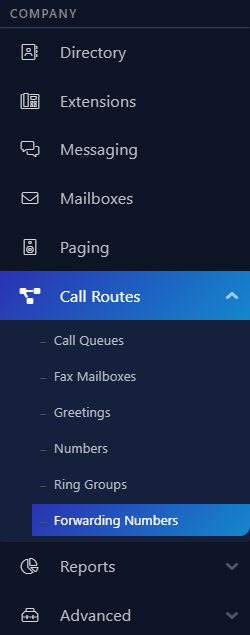
- Navigate to the ‘Forwarded Numbers’ from the ‘Call Routes’ sub menu.
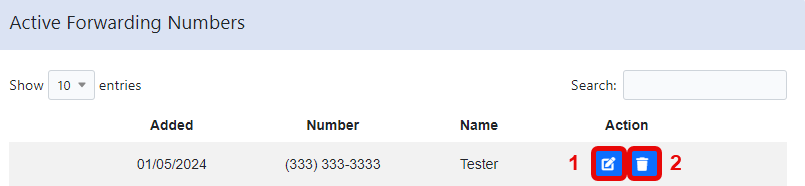
- Listed below are the available options on this page.
1 - Edit an existing forwarding number.
2 - Deletean existing forwarding number.
Creating a New Forwarded Number & Routing
- At the top of the Forwarding Numbers page, you can fill these two fields to create a number entry. This will be used for routing.
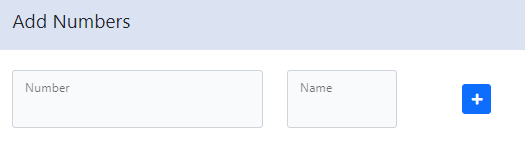
- Select the ‘Plus’ button to add the entry.
- Navigate to the ‘Numbers’ section of the portal.
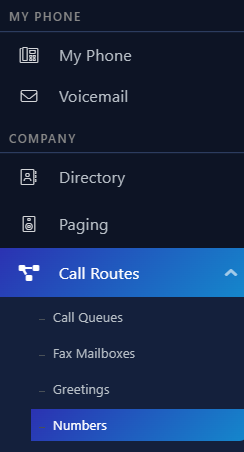
- Select the ‘Edit’ button on the number you want forwarded.
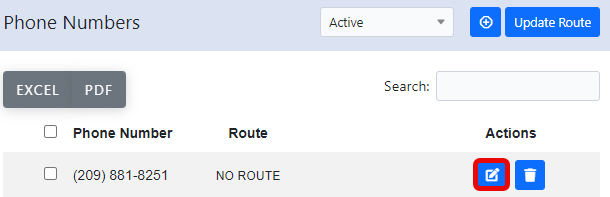
- Select the forward number entry that you created earlier.
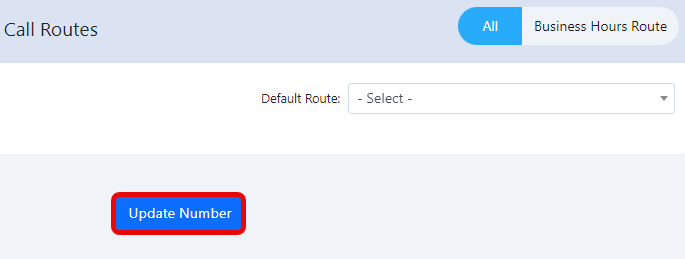
- Select ‘Update Number’.
Editing a Forwarding Number
- Navigate to the 'Forwarded Numbers' section of the portal.
- Select the ‘Edit’ button on the forwarded number entry.
- Edit one of two fields.
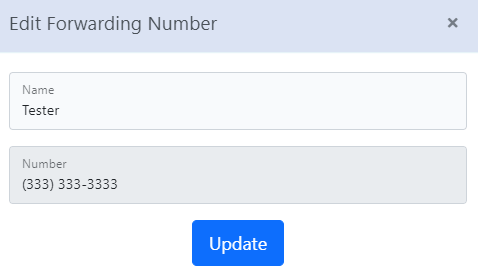
- Select ‘Update’.
Offline Forwarding
- Configure the requested number as a forwarding number. See the section ‘Creating a New Forwarded Number & Routing’.
- Navigate to the most important extensions. In the extension settings, turn on offline forwarding and set the forwarding number.
Still stuck?
This is the general version of this guide. Sign in to the customer portal for guides written for your system, deeper troubleshooting and your support history, or reach our team directly.