

Accessing E-Fax via the UniVoxx Portal
- After logging into the UniVoxx Portal, press the "Send Fax" Button near the top of your screen.

- Below is the main page for E-Faxing. See the screenshot and list below for a detailed explanation of each part.
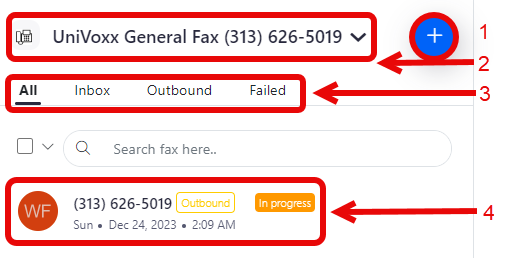
1 - This is where you can set up a new ongoing fax.
2 - This is where you can select which eFax number you’d like to send from. (Only one eFax number can be selected at a time.)
3 - Each category will filter the results below by which type of faxes to display.
4 - This is an example of a current outbound fax. You can click on this for more options.
- Below is the highlighted fax showing the ‘Mark Read’ and ‘Delete’ options.

E-Fax via the UniVoxx Portal
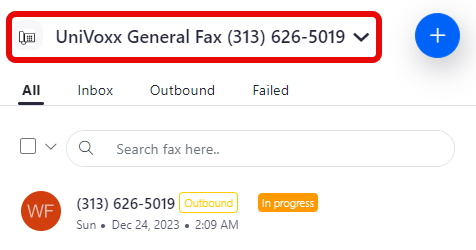
- Select the numberyou want to fax from.
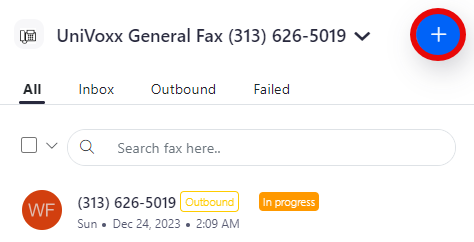
- Select the ‘Plus’ sign to start a new fax.
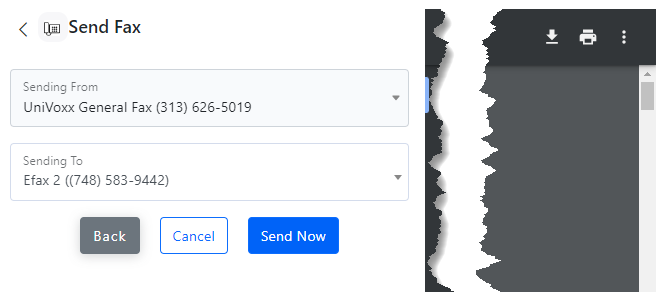
- Select the number you want to send to and add the file you want to send. Select ‘Preview’ to preview the file you are about to send.
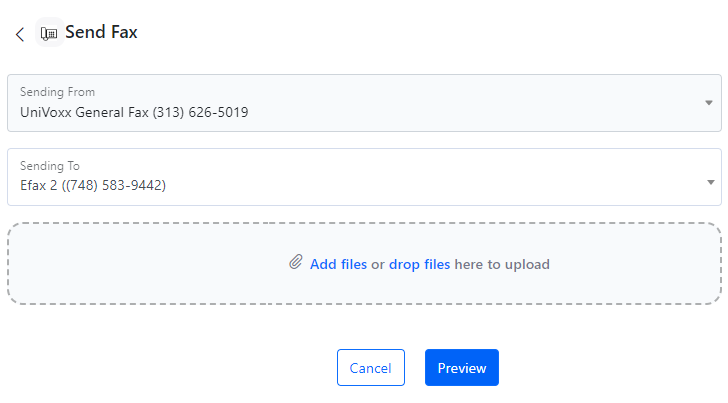
- After verifying the document and ‘Sending To’ number, select ‘Send Now’.
E-Fax with Email
- Create a new email with any PDF, or Non-PDF, attachments you'd like.
- Send the email to ‘1234567890@tofaxnumber.com‘ (1234567890 is destination number).
Still stuck?
This is the general version of this guide. Sign in to the customer portal for guides written for your system, deeper troubleshooting and your support history, or reach our team directly.